EmbroideryCraft fonts
Any computer font can be used for lettering, but its satin is worked out again every time. An EmbroideryCraft font (.ecfont) converts a computer font once and keeps the result: lettering is instant, sews the same every time, and you can fix any character by hand.
Making a font
Fonts › Make an EmbroideryCraft font…
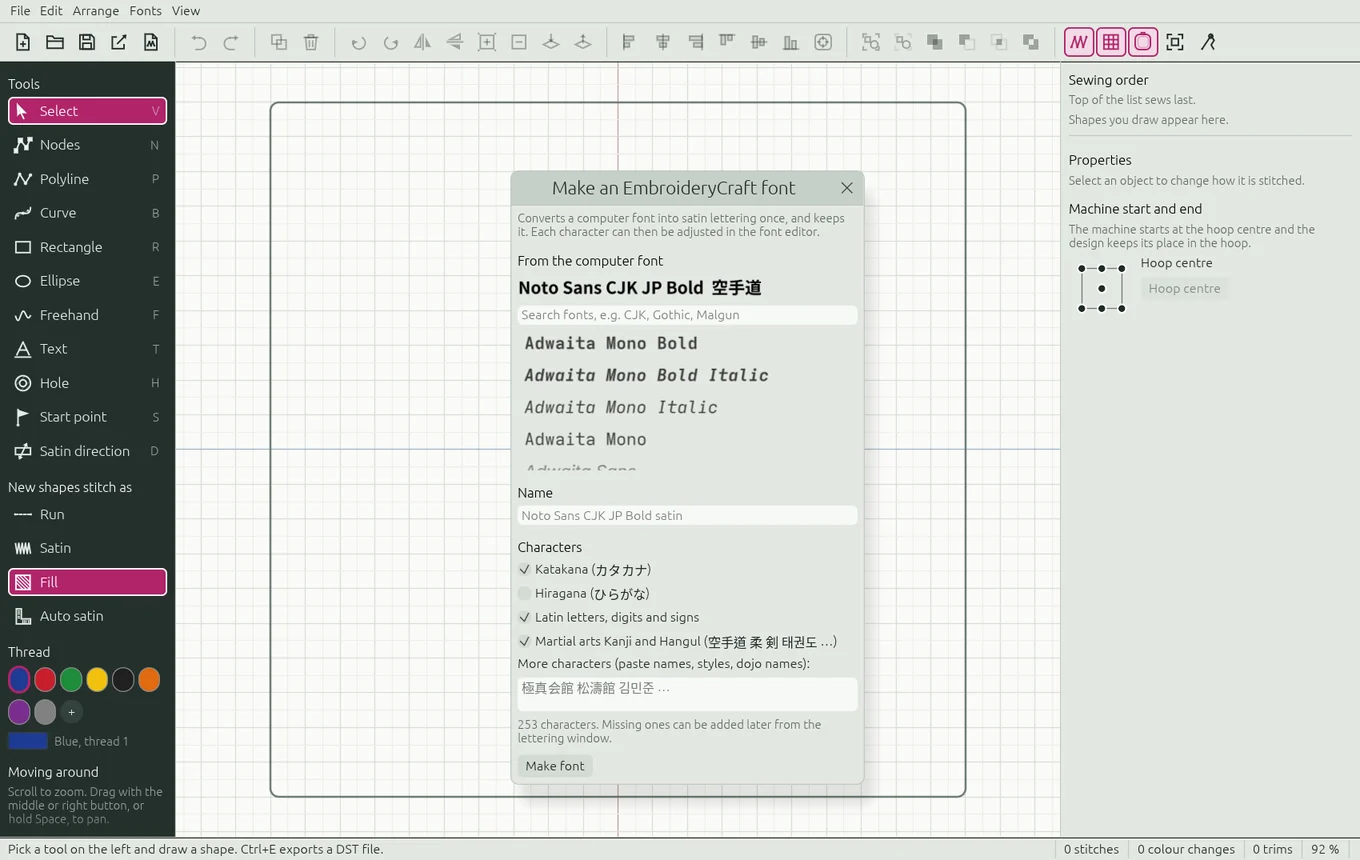
- From the computer font: search and pick the font to convert. Bold fonts usually sew best.
- Name: the name shown in the lettering window (it suggests "font satin").
- Characters: tick the sets you need:
- Katakana (カタカナ) (on)
- Hiragana (ひらがな) (off)
- Latin letters, digits and signs (on)
- Martial arts Kanji and Hangul (on): 空手道 柔 剣 合気 武術 拳法 少林寺 流 館 会 段 級 師範 先生 帯 道場 極真 剛 松濤 和 糸東 태권도 합기 유술 검 무예 관 사범 단 급 띠 and more.
- More characters: paste names, styles or dojo names to include their characters too.
- Click Make font. A progress bar counts the characters.
If a font with that name already exists, the new characters are added to it. Missing characters can also be added later from the lettering window with Add them to this font.
The font editor
Fonts › Edit an EmbroideryCraft font and pick a font. Your design is set aside and comes back when you click Finish editing.
- One character at a time is shown large, with guide lines for the baseline, capital height, top and bottom, and dashed lines at its left edge and its width.
- Click a character in the grid on the right to edit it. Characters changed by hand are shown in the accent colour. Switching characters keeps your changes.
- Use all the normal drawing tools (Nodes, Polyline, Curve, Hole…) to change its shapes.
- Use Satin direction (D) to choose which way the stitches run in each part of a stroke. This is the most useful fix for Kanji.
- Width of X is the distance to the next character, in em (1 em is the character height).
- Add characters: type or paste characters. They are converted from the original font if it has them, otherwise they start empty for you to draw.
- Save character (Ctrl+S), Delete character, and Finish editing to save the font and go back to your design.
While a font is open, New, Open, Export DST and Save mockup are blocked: finish editing first.
Drawing a font from scratch
Fonts › New blank font… creates "My font 1" and opens it in the editor. Add the characters you want under Add characters and draw each one.
Where fonts are kept
| System | Folder |
|---|---|
| Windows | %APPDATA%\EmbroideryCraft\fonts (paste it in the Explorer address bar) |
| macOS | ~/Library/Application Support/EmbroideryCraft/fonts |
| Linux | ~/.local/share/embroiderycraft/fonts |
The Fonts menu shows the exact folder. Copy .ecfont files there to move your fonts to another computer. To keep them somewhere else, set the environment variable EMBROIDERYCRAFT_FONTS to a folder.
Projects refer to computer fonts by their file. Lettering made on another computer sews as it is, but retyping it needs the same font installed.
Polices EmbroideryCraft
N'importe quelle police de l'ordinateur peut servir au lettrage, mais son satin est recalculé chaque fois. Une police EmbroideryCraft (.ecfont) convertit une police une seule fois et garde le résultat : le lettrage est instantané, se brode toujours pareil, et vous pouvez corriger chaque caractère à la main.
Créer une police
Fonts › Make an EmbroideryCraft font…
- From the computer font : cherchez et choisissez la police à convertir. Les polices grasses se brodent généralement le mieux.
- Name : le nom affiché dans la fenêtre de lettrage (il propose « police satin »).
- Characters : cochez les jeux nécessaires :
- Katakana (カタカナ) (oui)
- Hiragana (ひらがな) (non)
- Latin letters, digits and signs (lettres latines, chiffres et signes; oui)
- Martial arts Kanji and Hangul (kanji et hangeul des arts martiaux; oui) : 空手道 柔 剣 合気 武術 拳法 少林寺 流 館 会 段 級 師範 先生 帯 道場 極真 剛 松濤 和 糸東 태권도 합기 유술 검 무예 관 사범 단 급 띠 et d'autres.
- More characters : collez des noms, des styles ou des noms de dojo pour inclure aussi leurs caractères.
- Cliquez Make font. Une barre de progression compte les caractères.
Si une police de ce nom existe déjà, les nouveaux caractères y sont ajoutés. Les caractères manquants peuvent aussi être ajoutés plus tard depuis la fenêtre de lettrage avec Add them to this font.
L'éditeur de polices
Fonts › Edit an EmbroideryCraft font, puis choisissez une police. Votre motif est mis de côté et revient quand vous cliquez Finish editing.
- Un caractère à la fois est affiché en grand, avec des lignes guides pour la ligne de base, la hauteur des capitales, le haut et le bas, et des pointillés à son bord gauche et à sa largeur.
- Cliquez un caractère dans la grille à droite pour le modifier. Ceux modifiés à la main sont en couleur d'accent. Changer de caractère garde vos modifications.
- Tous les outils de dessin habituels (Nodes, Polyline, Curve, Hole…) servent à changer ses formes.
- Satin direction (D) choisit le sens des points dans chaque partie d'un trait. C'est la correction la plus utile pour les kanji.
- Width of X est la distance jusqu'au caractère suivant, en em (1 em est la hauteur du caractère).
- Add characters : tapez ou collez des caractères. Ils sont convertis depuis la police d'origine si elle les a, sinon ils commencent vides, prêts à dessiner.
- Save character (Ctrl+S), Delete character, et Finish editing pour enregistrer la police et revenir au motif.
Pendant qu'une police est ouverte, New, Open, Export DST et Save mockup sont bloqués : terminez d'abord l'édition.
Dessiner une police de zéro
Fonts › New blank font… crée « My font 1 » et l'ouvre dans l'éditeur. Ajoutez les caractères voulus sous Add characters et dessinez-les.
Où sont gardées les polices
| Système | Dossier |
|---|---|
| Windows | %APPDATA%\EmbroideryCraft\fonts (collez-le dans la barre d'adresse de l'Explorateur) |
| macOS | ~/Library/Application Support/EmbroideryCraft/fonts |
| Linux | ~/.local/share/embroiderycraft/fonts |
Le menu Fonts affiche le dossier exact. Copiez-y des fichiers .ecfont pour transférer vos polices vers un autre ordinateur. Pour les garder ailleurs, donnez un dossier à la variable d'environnement EMBROIDERYCRAFT_FONTS.
Les projets désignent les polices de l'ordinateur par leur fichier. Un lettrage fait sur un autre ordinateur se brode tel quel, mais pour le retaper il faut la même police installée.